
Managers' group
Low stock at Noor Cafe & Bakery
Butter croissant: 3 left.
GetMenu gives your restaurant live stock: a restaurant inventory system built into the GetMenu POS and your online ordering page. Type how many portions of a dish you have, and every order counts it down. At zero, the dish is sold out everywhere at once, on the POS, the online menu and the QR tables.
A restaurant sells dishes it no longer has because its menu does not know the kitchen has run out. The online menu, the menu you send in WhatsApp and the counter all keep offering the dish until somebody stops it.
On a busy evening, nobody has time. The biryani runs out at eight o'clock, but customers can still order it online. The cashier sells the last cheesecake, although a customer ordered it online ten minutes earlier.
Then someone has to call the customer, say sorry and offer something else. Some customers accept the change. Others cancel, and some never order from you again. Each of these calls also takes time from the person who should be taking the next order.
GetMenu lets you count stock for any dish on your menu, and for each size or flavour on its own. You choose which dishes to count, and the rest of the menu works as before.
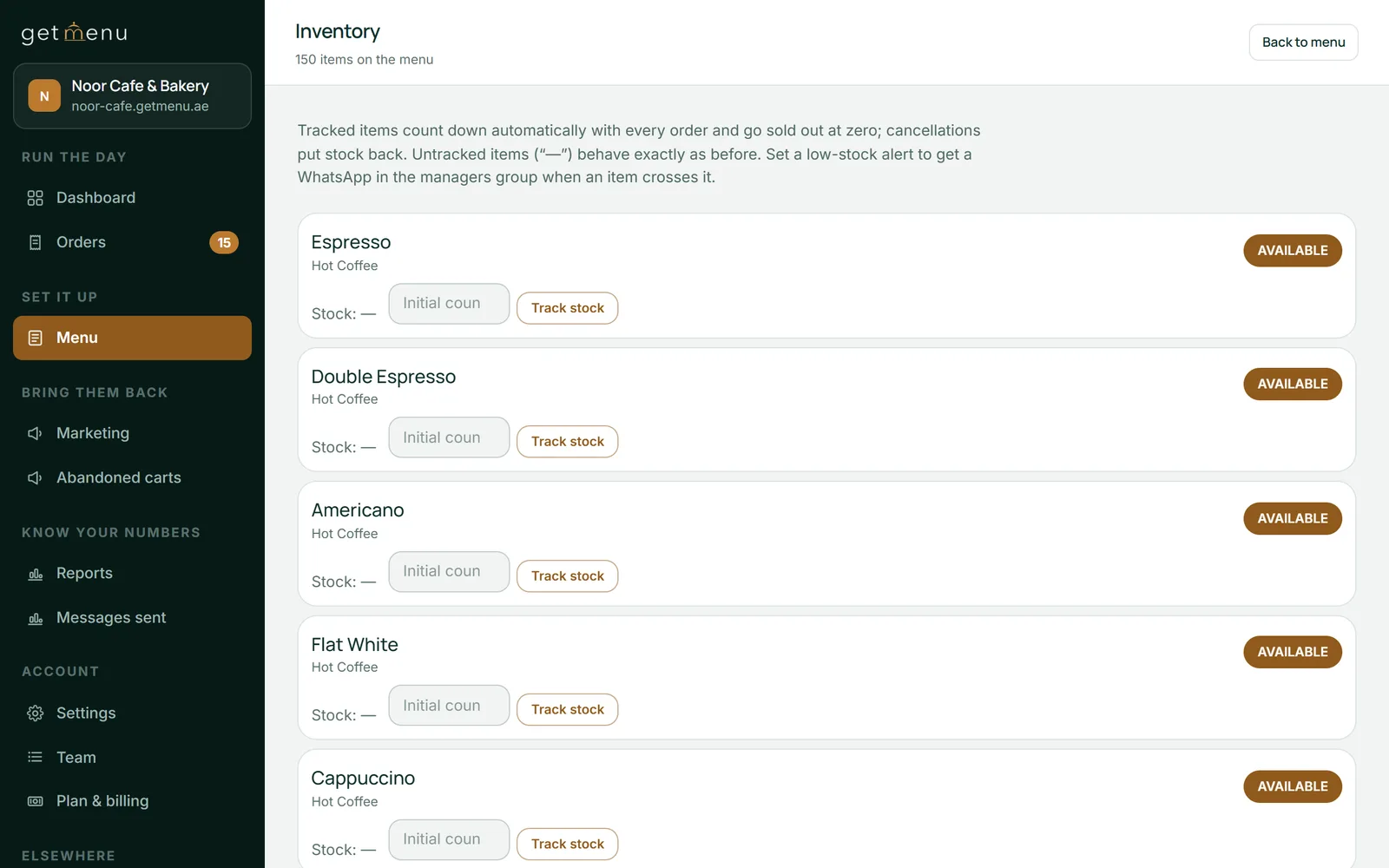
Open Menu, then Inventory, type how many portions you have and press Track stock. Track the dishes that really run out, such as cakes, daily specials or anything you make a fixed amount of each day. Dishes you do not track have a simple switch on the Menu page, Available or Sold out, that you press yourself.
A size, a flavour or an extra can carry its own number. When one sauce runs out, that choice is crossed out when the customer opens the dish, and they cannot pick it. The dish keeps selling with its other choices. To add stock, press + Restock or type a new count. The Stock sheet (CSV) button downloads your stock list as a spreadsheet, with an empty column for counting by hand.
With GetMenu, you do not mark a tracked dish sold out yourself. When its count reaches zero, the dish is sold out on every screen at the same moment: the POS, your online menu and the QR tables. On your ordering page, Sold out takes the place of the Add button, and customers cannot add the dish to a cart.
The dish stays on the menu, so regular customers can see it is still something you make. When you add stock, it goes back on sale by itself. If you cancel an order, its portions go back into the count, and a dish that had sold out comes back on sale.
Customers also see when a dish is nearly gone. When five or fewer are left, a small note on the dish says, for example, "Only 3 left". If you set an alert level higher than five, the note starts at that level instead. When the customer opens the dish, the quantity buttons stop at the number that is left, so nobody can ask for six when you have four.
One dish on your ordering page as its count falls
GetMenu checks the live count at the moment an order is placed, not the menu the customer opened earlier. So a customer can never order more portions than you have left.
Suppose two people order the last portion of a dish at the same time. Only one order goes through. The other customer is told at once that the dish has just sold out, or how many are still left if there are a few. Their order is not placed, so nobody has to call them to cancel it, and they can change their cart and order again.
The same check runs on every order, from your ordering page, a table's QR code or the POS. Your team never gets an order for a dish that has run out. Nobody has to tell a hungry customer that their food is not coming.
The GetMenu POS and your ordering page sell from one stock count. A portion sold at the counter comes off the same number as a portion ordered online or from a table's QR code. Online orders show on the same POS screen as counter sales. A phone order or an order from a WhatsApp chat is typed in once at the POS, and it comes off the same count. So does a table's order when a waiter sends it to the kitchen.
So the last portion can only be sold once. If it goes at the counter, your online menu shows it as Sold out right away. If it goes online first, the POS shows it as Sold out, and the cashier cannot sell it.
Staff can change a count on the stock screen of the POS. A cook can also set one on the kitchen screen with "I can make". A refund at the counter puts stock back only when you tick it, because a burnt dish should not go back on sale.
GetMenu can warn your managers on WhatsApp when a dish is running low. You set an alert level beside the dish's count, and your managers' group gets one message when an online order takes the count below that level.
The message names the dish and says how many are left, so someone can cook more or offer a different dish before it runs out. It is sent once, when the count first falls below your level. It is not sent again for every order after that. To receive it, your WhatsApp number must be connected and your managers' group chosen in your settings.
Alert levels are set dish by dish on the Inventory page, with a box beside each tracked dish and a Set alert button. On the same page, a dish at zero has an Out of stock badge. A quick look in the morning shows what you must cook before you open.
Low stock at Noor Cafe & Bakery
Butter croissant: 3 left.
Low stock at Noor Cafe & Bakery
Chocolate cake: 2 left.
One message when an online order takes a dish below your alert level
GetMenu also keeps a list of the ingredients you buy, apart from the dishes you sell. Each dish can have a recipe, and every sale of that dish takes its ingredients off the shelf, at the counter, at a table or online.
Count each ingredient in its own unit, such as grams, litres or pieces. Give it a minimum level (called Par level on the screen), the least you want on the shelf. The Ingredients & suppliers page lists what is short and how much to reorder. Recipes & food cost shows what each dish costs you to make and the margin you keep.
When a delivery arrives, mark its purchase order as received. That puts the goods on the shelf and updates the average cost of each ingredient. A cancelled order puts its ingredients back. You can record a stock count or food that was thrown away, with a reason. Every change to a dish count is saved with its reason too, so you can always see why a number moved.
Type how many portions you have of a dish, or of one size or flavour, then press Track stock. Leave the other dishes as they are.
Menu, then Inventory
Type a number in the alert box beside a tracked dish and press Set alert.
Menu, then Inventory
Link your WhatsApp number by scanning a QR code, then pick the group that gets order tickets and low stock alerts.
Settings, then WhatsApp connection & groups
List what you buy with its unit and minimum level, then give each dish the recipe for one portion.
Menu, then Ingredients & suppliers and Recipes & food cost
Add your suppliers, start a purchase order, and mark it received when the delivery comes in.
Menu, then Ingredients & suppliers (suppliers) and Purchase orders
No. Track only the dishes that really run out, such as cakes, daily specials or anything you make a fixed amount of. Most dishes never need a count, because the kitchen can always make more. The other dishes keep working as before, and you can still switch any of them between Available and Sold out by hand on the Menu page.
Yes. Each size, flavour or extra can have its own count, which you set under the dish on the Inventory page. When that choice reaches zero, it is crossed out when the customer opens the dish, and they cannot pick it. The dish keeps selling with its other choices, and each order of that choice takes its count down, online and at the counter.
No. A sold-out dish stays on your menu with Sold out where the Add button was. Customers can see it is normally there, but they cannot add it to a cart. A tracked dish goes back on sale by itself when you add stock, so you do not have to remember to switch it back on.
Yes. Stock counts, the Sold out marking, the note that says how many are left, low stock alerts, ingredients, recipes and purchase orders are part of every plan. The stock screen on the POS and the kitchen screen come with the POS, a yearly add-on. The pricing page shows the plans and the add-on in your own currency.
The checkout checks the live count when they place the order. If the dish has gone, they are told which dish sold out, or how many are left, and the order is not placed. They can change their cart and order again. You can also switch on a small sorry gift: a customer who has ordered before gets a single-use discount code. This is part of the loyalty tools, so it depends on your plan.
Yes, with the POS add-on. On the kitchen screen, the cook picks the dish, chooses "I can make" and sets the number of portions. That number becomes the dish's count, the same one the POS and your ordering page sell from. When the last of those portions sells, the dish stops selling on the POS, the online menu and the QR tables at the same moment.
It should stop you selling what the kitchen cannot cook. Look for four things. Counts per dish and per size. A live check when each order is placed. One count shared by the counter and online orders. A record of every change. In GetMenu, a dish that runs out at the counter shows as sold out online at once. GetMenu also keeps ingredients, recipes, food cost and purchase orders, so you can see what is on the shelf.
Press Stock sheet (CSV) on the Inventory page. It downloads every dish with its count, its alert level and how many sold today. It also has an empty column for your own count. Correct any number with Set. Every change is listed under Stock movements with the time, the amount and the reason, so you can see where each portion went.
Try GetMenu free for 15 days, with no card needed. Count the dishes that run out on your ordering page, and add the POS when you want the counter on the same count.